Windows 10 is the best designed operating system by Microsoft to date. If like me, you paused using Internet Explorer years ago, Microsoft’s new modernized Web browser called Edge is a shock. Microsoft Edge is Internet Explorer’s auxiliary and comes fortified with a Share button for swiftly passing website links to others, note-taking mode, and an interface that works fine for all users. The Bing is the default search in Windows 10 Edge browser.
Not only this, but it’s also Bing in the Ask Me Anything bar that’s located to the Taskbar by default, which processes searches. And, it’s again Bing that works behind the scenes, processing commands for Microsoft’s digital assistant – Cortana and Apple’s Siri.
Microsoft has two competitors in the operating system space: Google and Apple. Alike Microsoft, both the companies roll out free updates to their operating system and boosting usages of their other services.
It’s quite difficult to change the Bing as it is tightly integrated with Windows 10. But, you can change the default search engine to Google in Microsoft Edge, which is the default web browser in Windows 10.
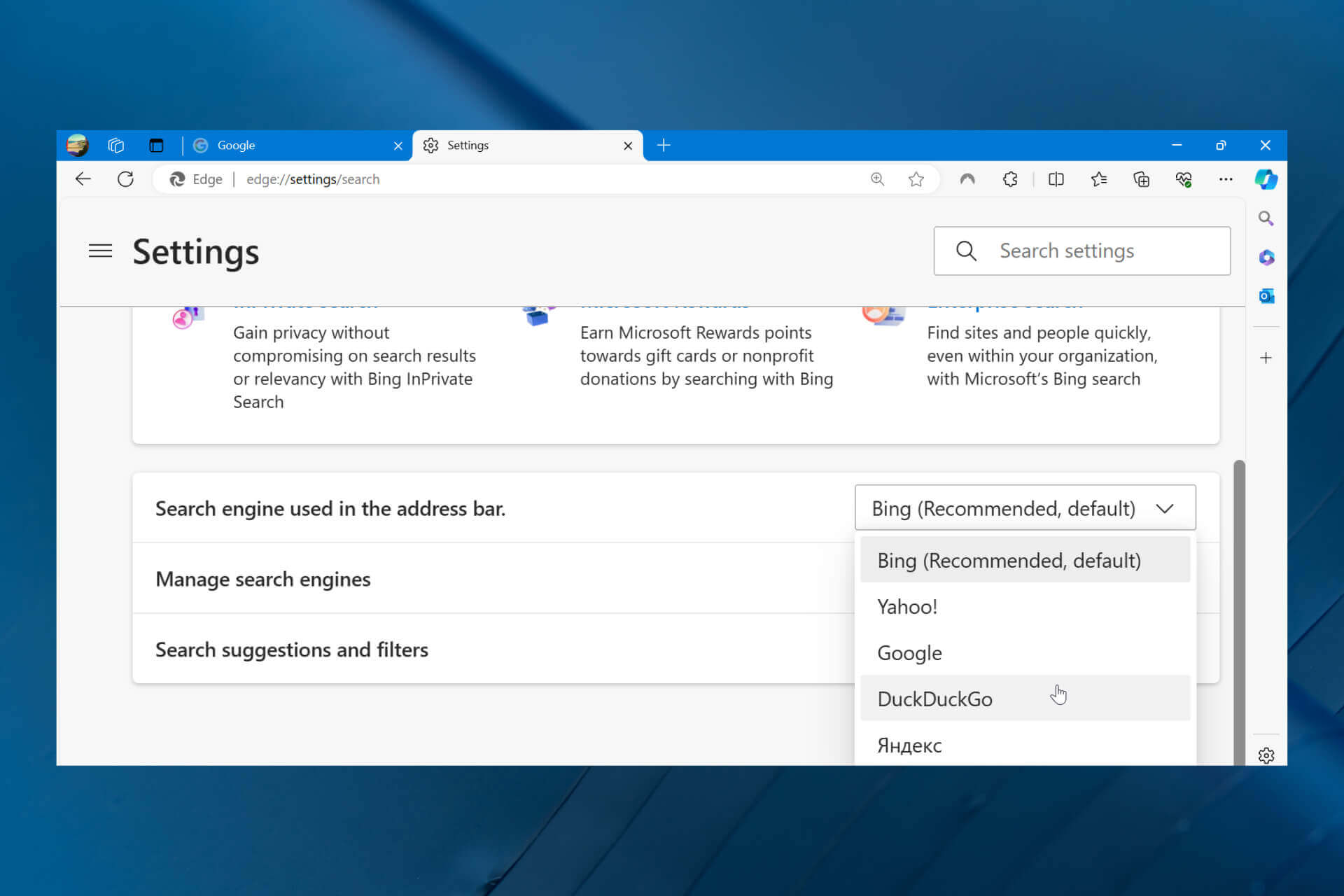
When you type something in the address bar, you’ll see results from Bing, which is the default search engine in Microsoft Edge. But the web browser uses OpenSearch technology so you can change the default search engine. Here’s how to do it:
Step 1: On your keyboard press the Windows key, the Windows button on the taskbar, or the physical Windows button on your touch-screen device.
Step 2: Now, look for bright blue tile, with written Microsoft Edge in the bottom left corner. By default, it should be pinned to your Start Menu or Start Screen. (If it’s not, and you have a mouse, click on the All Apps button. If you’re in touch, tap the Menu button in the top-left corner and tap on All Apps).
Step 3: Open the Microsoft Edge. Type ‘Google.com’ in the URL bar and wait for the page to load fully. Now, tap or click on the ellipses (three dots) in the top-right corner of your screen.
Step 5: Now, tap or click on Settings from the drop-down menu.
Step 6: Scroll down to the bottom of the list of Settings.
Step 7: Tap or Click on View Advanced Settings.
Welcome to the Advanced Settings menu within Microsoft Edge. From here you can change many settings of the browser, including the default search engine.
Step 8: Now, scroll down towards the bottom of the Settings. You’ll notice a field named “Search in the address bar with”.
Step 9: Click or Tap on Google in the drop-down menu.
Step 10: Click on the “Add as default” button. That’s it.
By typing a search query in the Microsoft’s Edge address bar, the browser should now use your new default search engine. For whatsoever reason, you can even opt to set Wikipedia or DuckDuckGo as your default search engines.
Unfortunately, Cortana in Windows 10 still defaults you back to Bing. As Cortana is an interface for Bing, there’s no way to change it.
Establishing a startup is a difficult task; there’s no doubt about it. In fact, about…
If you’re searching for a solution to remove PDF print protection and print password protected PDF…
It’s very stressful to find or recover permanently deleted emails or messages from the Gmail…
DNS Probe Finished No Internet’ (or DNS_PROBE_FINISHED_NO_INTERNET) is a very common and frustrating error, which occurs…
Seniors picturing retirement filled with quiet mornings, quick trips to the market, and worry-free bills…
For seniors living with dementia, geofencing apps add a quiet layer of safety at home…