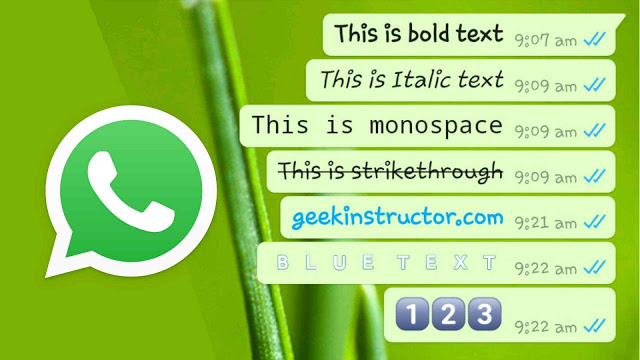
No matter how many new text-chat platforms we get!
WhatsApp has been our evergreen favourite app to exchange text messages with all our friends and family. Not to mention, it has become such a familiar app that the impact of WhatsApp forward messages is of next level among older generations.
Apart from this! WhatsApp provides a lot of cool features that make conversation with your peers much enjoyable.
One of such cool features is to change the font style of the text.
In order to make your text look exciting, you can change the default font of the text to Bold, Italic and Bold Italics.
Before going to use this, make sure you are logged into WhatsApp and open chat box of any contact.
In order to make you text bold, just place asterisk symbol (*) on both ends of the text that you want to make look bold.
Example
*Bold text* it make your text look like Bold text
In order to make your text italic, just place the underscore symbol (_) on both ends of the text that you want to make it look bold.
Example
_Italic text_ it make your text look like Italic text
In order to make you text bold-italic, place both asterisk symbol (*) and underscore on both ends of the text that you want to make look bold-italic.
Example
_*Bold-Italic text_* it make your text look like Bold-Italic text
If you want to convey that something is wrong clearly. You can strike the text by placing a negation (~) symbol before and after the text.
Example:
~Strike the text~ it makes your text look like Strike the text
You can also strike the bold-Italic text by placing all the symbols before and after the text.
_*~Strike the Bold-Italic text_*~ it results in Strike the Bold-Italic text
This is a recent font feature released by WhatsApp. You change the font to monospace, which is also called Type-writer’s font by placing three backticks before and after the text.
“`Type-writer’s font“` makes the text look like Type-writer’s font
So cool font, isn’t it?
These are the font features which WhatsApp provides you by default.
You can use them anywhere in the text chat and status, you make it look exciting!
In addition to these fonts, if you want to convert your text to various other formats, you can achieve it using some third-party apps.
Apps such as New cool text and Better font help you to convert text from one font to another. If you are using Android, you can directly paste the text from these apps into WhatsApp. If you are using iOS, the iOS App store offers a third party keyboard using which you can convert text from one font to another.
WhatsApp also offers an option using which you can also change the font size of the text.
Click on the menu (three-dots on the left corner) of the WhatsApp home screen.
Go to Settings > Chats > Font-size.
Select the appropriate size.
You can also modify the app’s language from the same screen, if you wish to choose a different language.
These are some of the cool hacks to make your text chat interesting. If you wish to use any third-apps, they may require access to your chats. So make sure you use trust-worthy third party apps.
WhatsApp has become the most popular platform to exchange text-messages with 1.5 Billion active users. In order to satisfy its users, WhatsApp keeps releasing some exciting updates from time-to-time. If you want to share other cool WhatsApp hacks, feel free to mention in the comment section below.
Establishing a startup is a difficult task; there’s no doubt about it. In fact, about…
If you’re searching for a solution to remove PDF print protection and print password protected PDF…
It’s very stressful to find or recover permanently deleted emails or messages from the Gmail…
DNS Probe Finished No Internet’ (or DNS_PROBE_FINISHED_NO_INTERNET) is a very common and frustrating error, which occurs…
Windows 10 is the best designed operating system by Microsoft to date. If like me,…
Seniors picturing retirement filled with quiet mornings, quick trips to the market, and worry-free bills…